I must do this process at least once a day working in my interior design firm and on this site.
Fortunately, it’s a fast, easy and free process… other than buying the paint lol.
In order to come up with the very specific design ideas, we create most designs with the assistance of state-of-the-art AI interior design software. Also, assume links that take you off the site are affiliate links such as links to Amazon. this means we may earn a commission if you buy something.
Video version: How to get the paint color and visualize it in your room
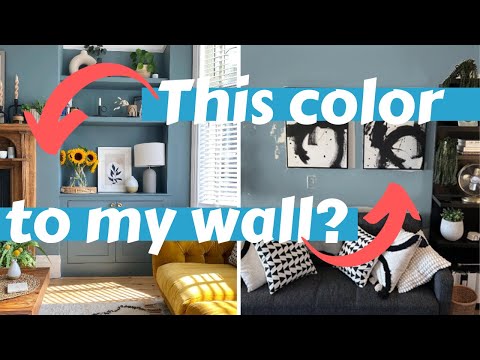
Don’t like videos? No problem. Here are the screenshot steps:
We’ve all been there when starting a reno or makeover. Browsing interior photos on any myriad of sites… Instagram, Houzz, Homestratosphere.com etc.

🔥 Would you like to save this?
1: Get an online color picker
I use ColorZilla Chrome extension. Any will do. There are many to choose from.
2. Select “Pick Color From Page”

3. Move cursor and try to find the closest color representation you’re looking for
With ColorZilla when I click the mouse button, it saves the six-digit HEX number for me.

4. Go to EasyRGB.com and Click “Match Color Data to Commercial Colors” section

5. Select the HTML option shown below
This is the option where you input a HEX number. FYI, there are various numerical systems for identifying digital colors. We’re using HEX for all of this.

6. Paste 6-Digit HEX number into the field shown
Then choose your preferred paint company.


7. EasyRGB will spit out several paint colors.
Choose the one, two or few you want to test.

8. Head to your paint company. I’m using Benjamin Moore
You can search by paint name or number. This is to confirm the paint exists.

9. To see the paint color(s) in your room, go to your paint company’s paint visualizer.
I’ll step you through Benjamin Moore’s paint visualizer. It’s pretty good.

10. Upload a photo of your room
I uploaded my home office.

11. Give your project a name so you can save it.

12. Select the wall areas you want to apply the new paint
You’ll need to play around here. I found the Magic Selection to work well and then I tidied up with the Magic Brush.


🔥 Would you like to save this?
13. Once your area is selected, click “Save and Select Color”

14. I searched for my chosen paint color by name.
It showed up. I clicked it and voila, the wall is a new color.